User guide: the platform team
This guide covers the work of the platform team: approving organizations, granting internal roles, managing the taxonomy and sensitive data, reviewing reports and disputes, and running the course catalog. Every internal role needs an authenticator app, and everything you do is logged.
Download PDF1. The platform administrator
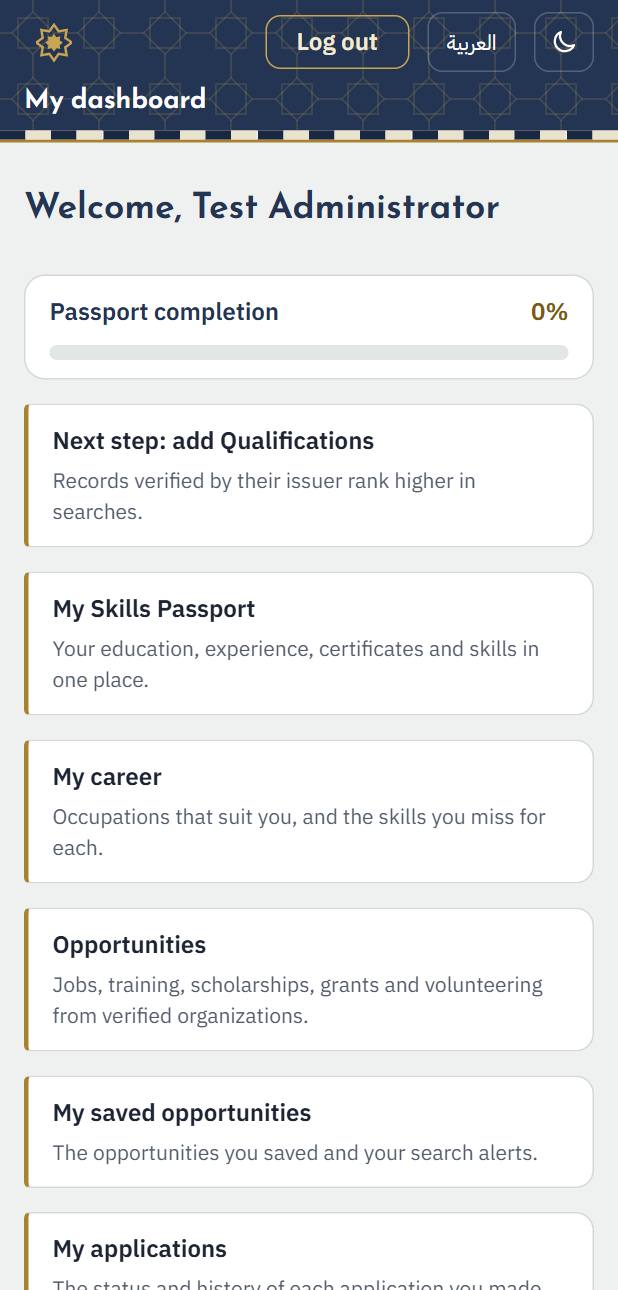
1. Choose the role “Platform administrator” under “My roles”. The administration cards appear.
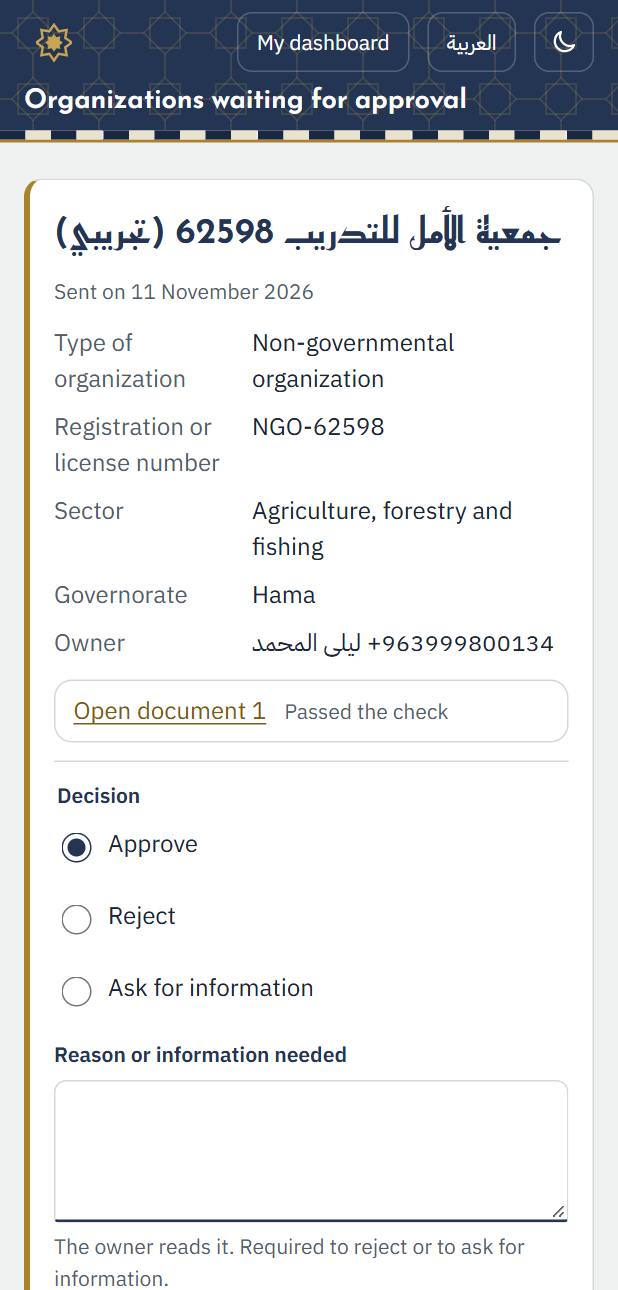
2. “Organizations waiting”: each new organization with its details and documents. Choose the decision (approve, reject, or ask for information) and write the reason. For issuers, set the kinds of records they may verify.
2. Internal roles
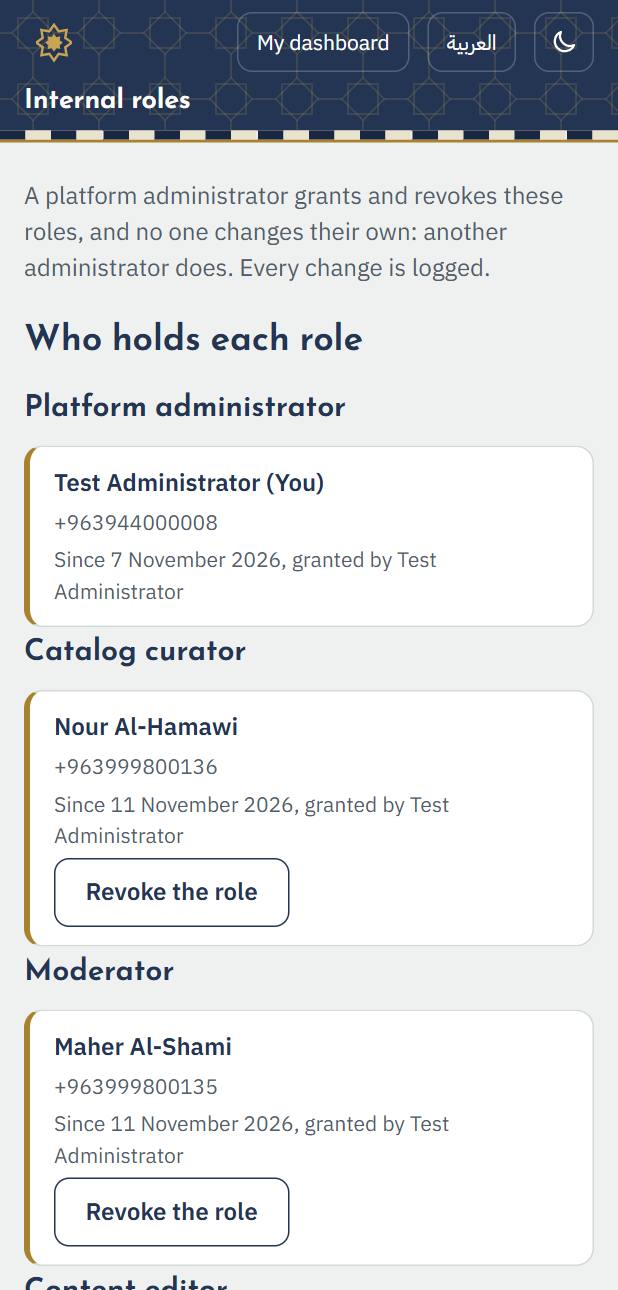
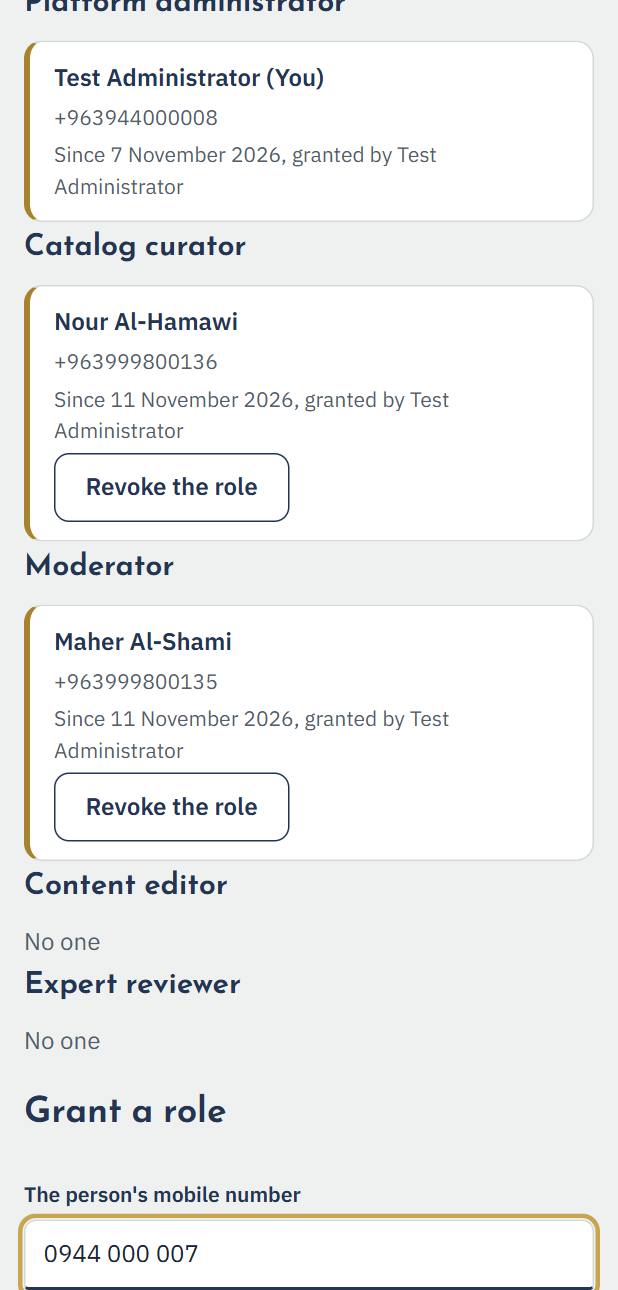
1. “Internal roles” shows who holds each role: platform administrator, catalog curator, moderator, content editor and expert reviewer.
2. To grant a role: type the person's mobile number (they need an account) and choose the role, then “Grant the role”. You may be asked to confirm it is you with a code first.
3. Taxonomy, sensitive data and integrations
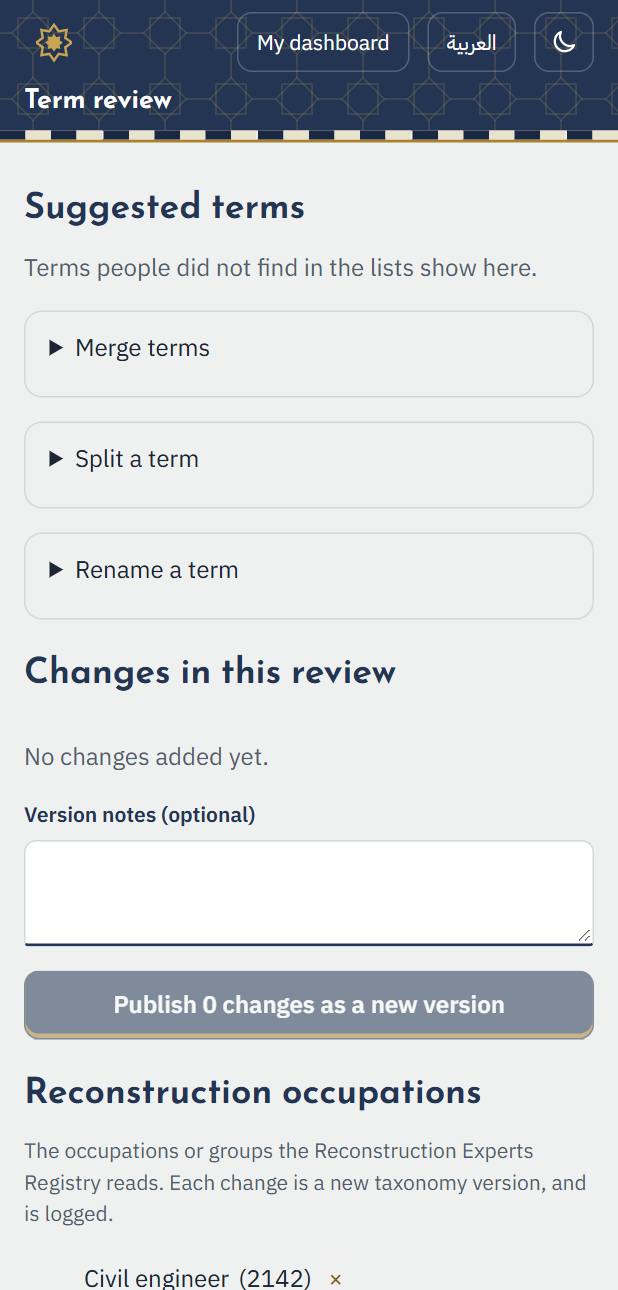
1. “Terms”: the occupations and skills everyone chooses from. Review the new terms users suggest: map them to an existing term, add them, or refuse them.
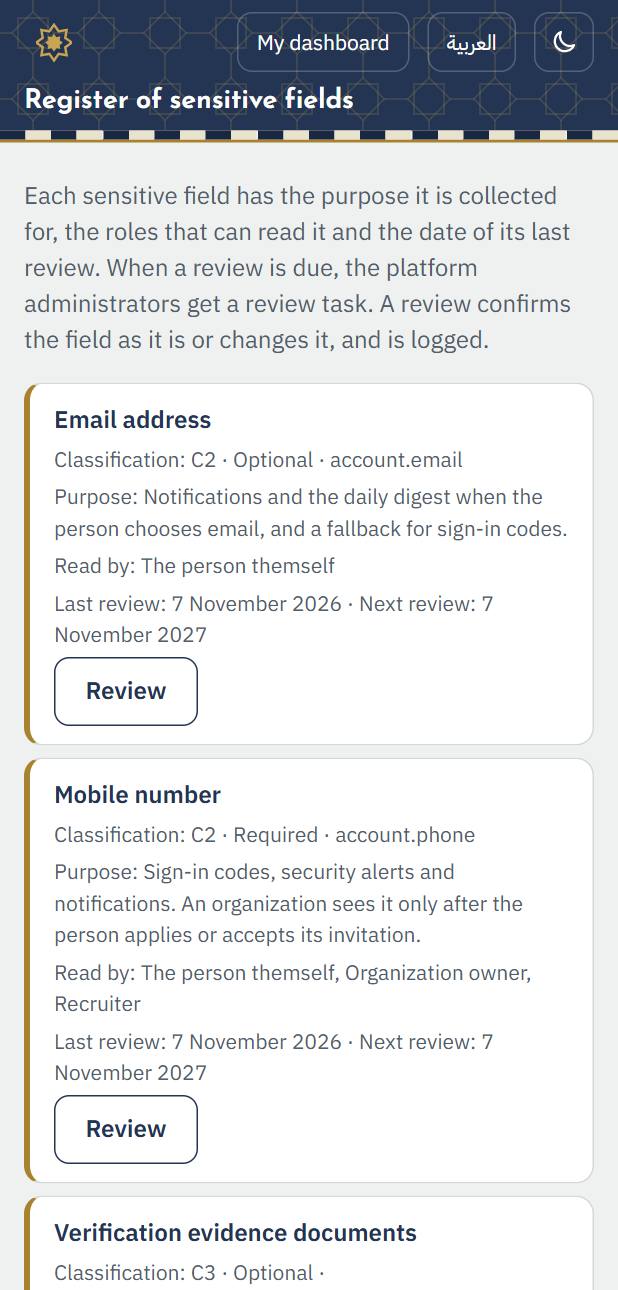
2. “Register of sensitive fields”: every field that holds sensitive data, where it is kept, who sees it and how long it is kept. Reviewed at every change.
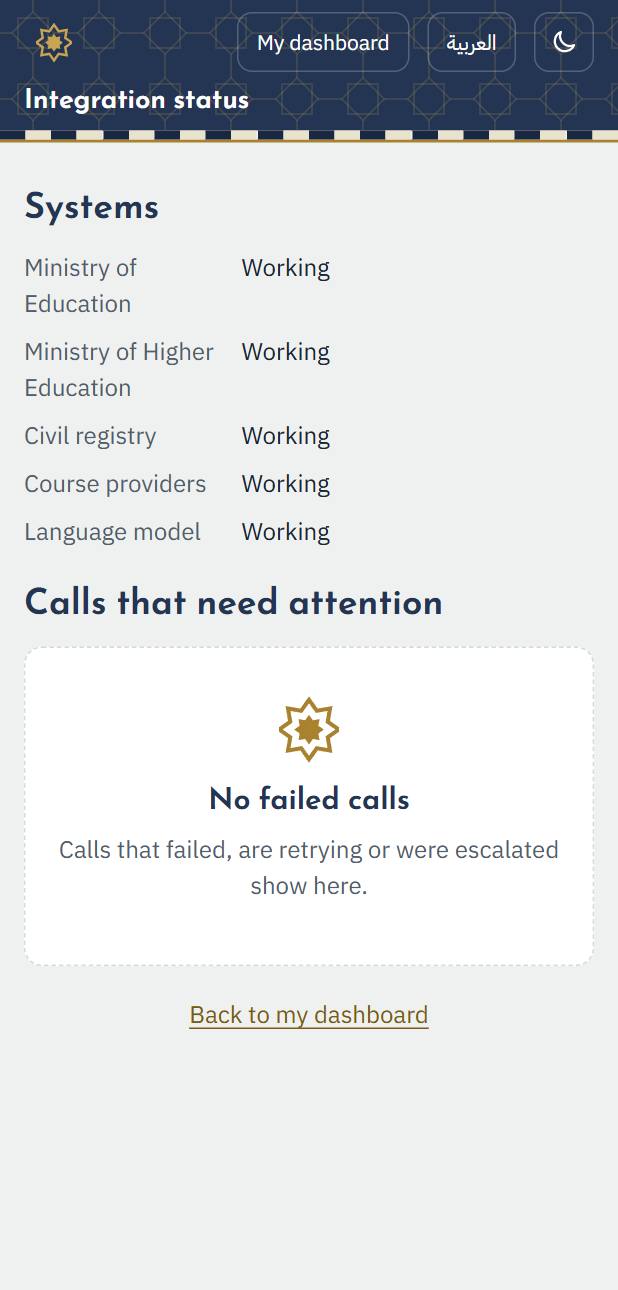
3. “Integration status”: the state of the links with the ministries, the text-message provider and others, with the last success and the last error.
4. The moderator: reports and disputes
1. Choose the role “Moderator”. “Reports” shows what was reported, hidden items first, with the number of reports and their reason.
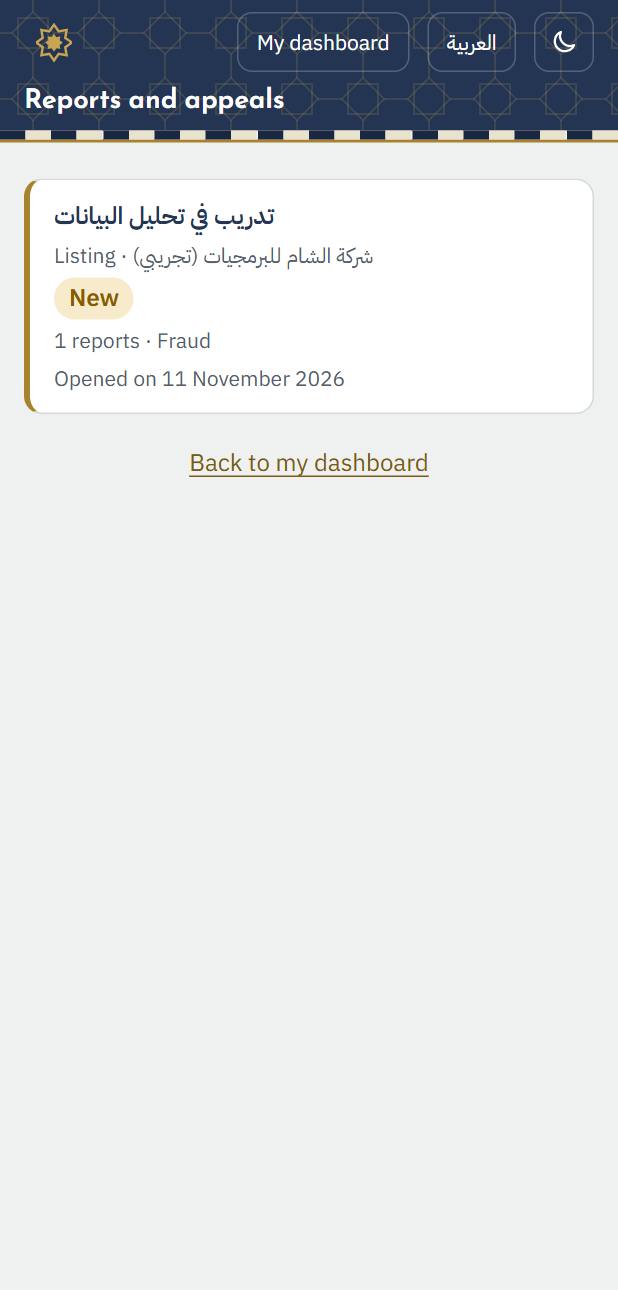
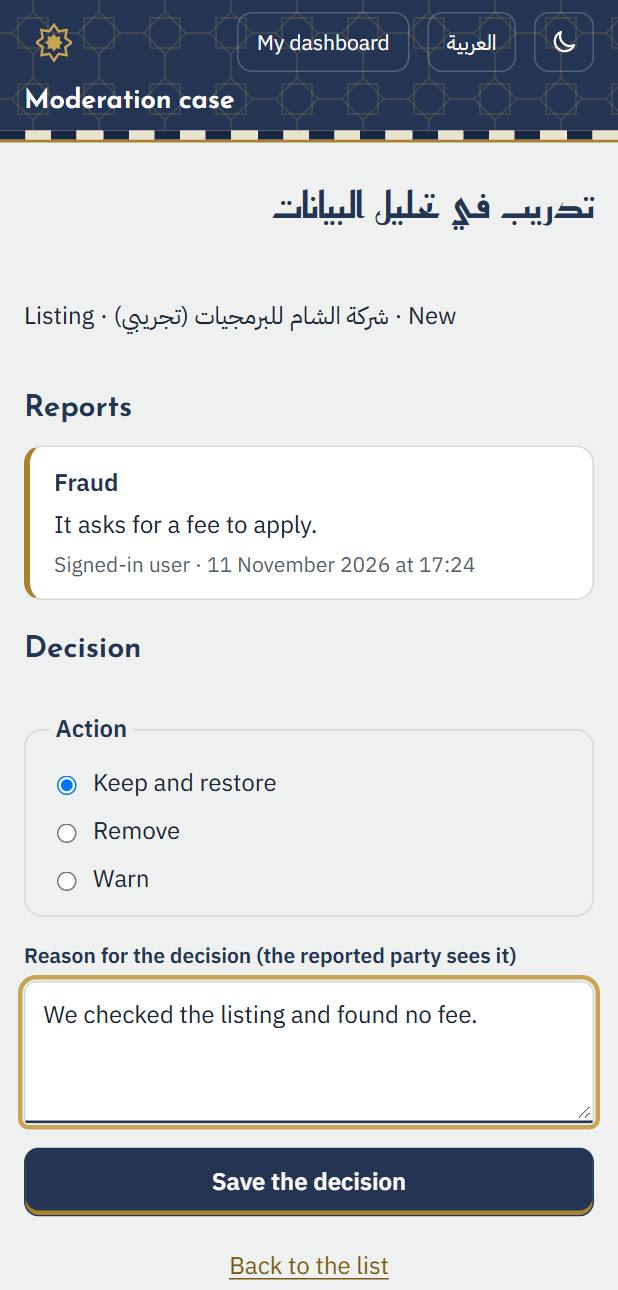
2. Open a case to see the reports (without the reporter's identity), then decide: keep and restore, remove, warn, or suspend the account, with a reason the reported side sees. Both sides are told, and the decision can be appealed once.
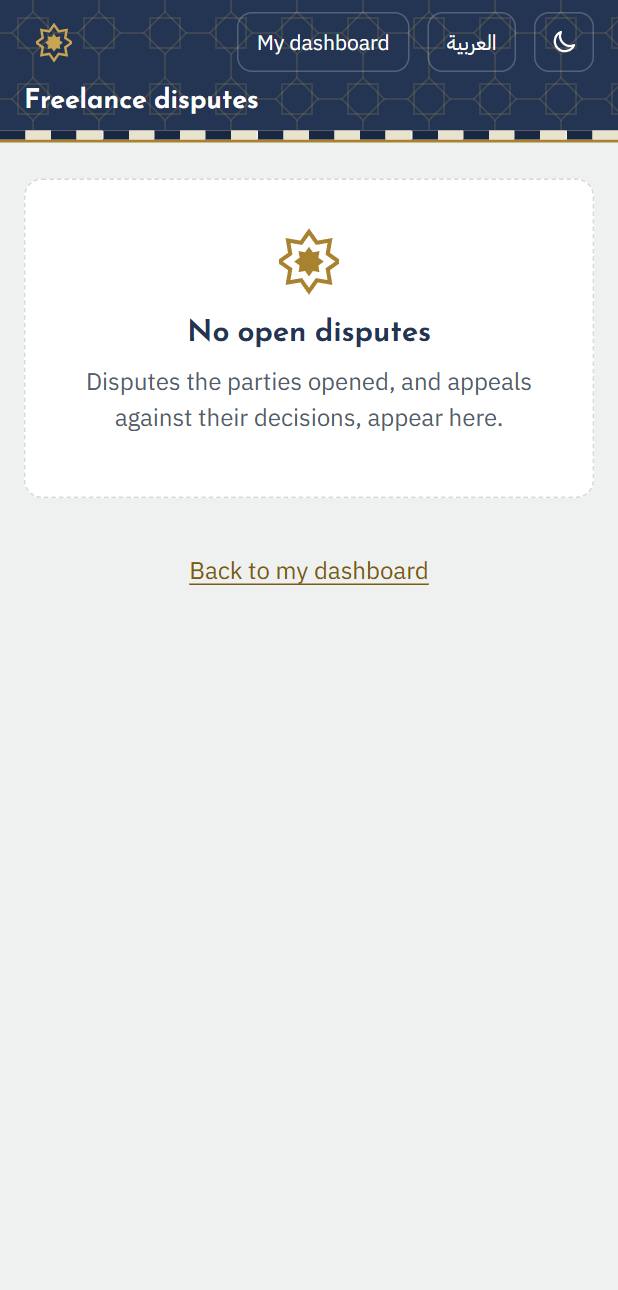
3. “Freelance disputes” shows freelance disputes with the contract, its milestones, messages and evidence, so you can decide and record the decision.
5. The catalog curator
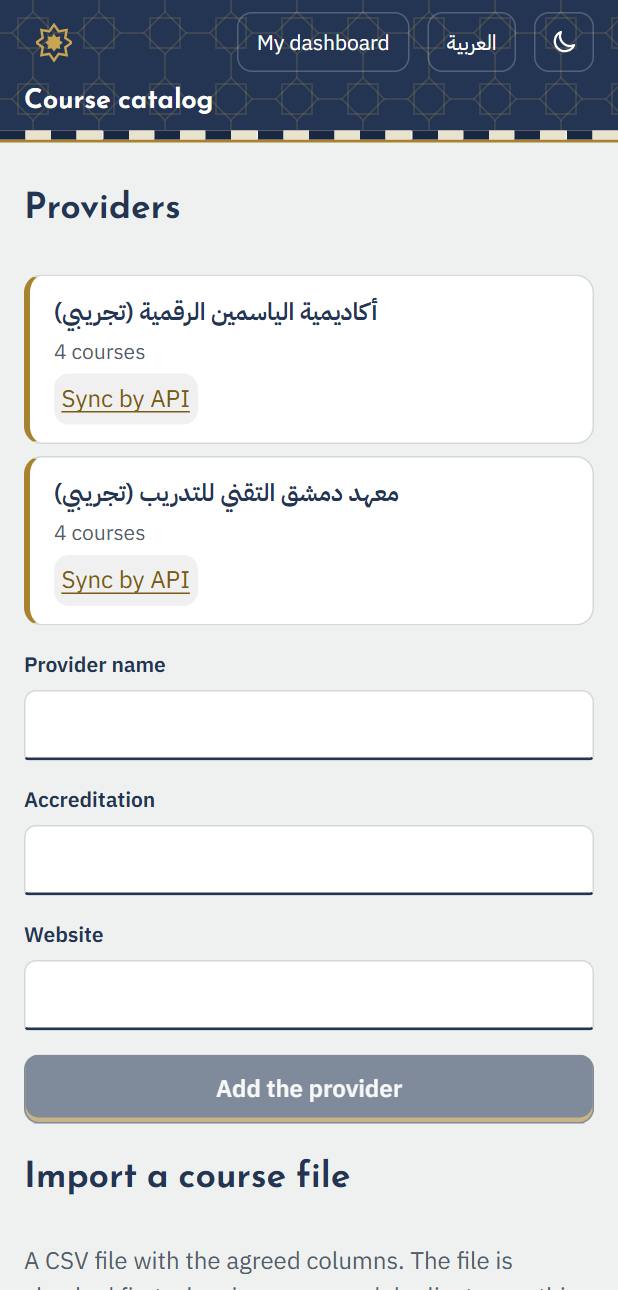
1. Choose the role “Catalog curator”. “Course catalog” shows the courses that training centers publish: review them and publish them in the directory or send them back with a note, and build curated collections of courses for one goal.